Wireless Control
Wireless Control is the home screen — it's what you see whenever the receiver is on and ready. This page is also a good tour of the touchscreen in general, since the status bar and navigation shown here appear on every screen.
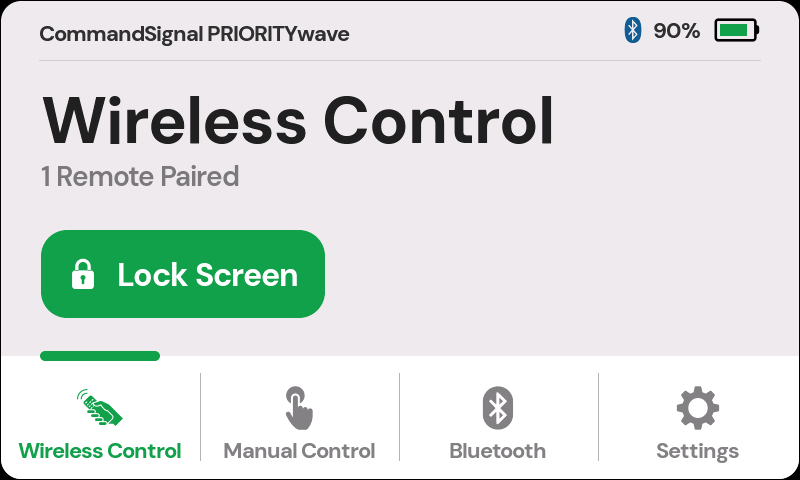
The Status Bar
The bar across the top appears on every screen. From left to right:
- Device name or property tag —
CommandSignal PRIORITYwaveorProperty of YOUR DEPARTMENT. - Traffic-light icon — appears for a moment whenever an advance command fires. If you see it, the command went out.
- Bluetooth icon — shown while a phone is connected over Bluetooth.
- Battery — the charge percentage next to a battery gauge. The gauge is green when healthy, amber below about 30%, and red below 15%, with a lightning bolt while USB-C power is connected.
Bottom Navigation
Four tabs along the bottom get you everywhere:
- Wireless Control — this screen.
- Manual Control — advance the signal from the touchscreen.
- Bluetooth — pair and manage phone connections.
- Settings — preferences, remotes, and device info.
Tasks like pairing a remote, entering a PIN, or watching a firmware update open as full-screen steps on top of these tabs. The green back arrow in the top-left corner takes you back out.
Paired Remotes at a Glance
The subtitle shows how many remotes are currently paired (the receiver allows up
to four). If none are paired yet, the screen calls it out and the main button
becomes Pair a Remote so you can fix that in one tap.
Once at least one remote is paired, press its button to advance the signal — you'll see the traffic-light icon flash in the status bar each time. Pairing is secured, so only remotes paired to this receiver can control it. See the LoRa Remote page for pairing and remote details.
Lock Screen Shortcut
When a remote is paired, the main button reads Lock Screen. Tap it to lock the
touchscreen behind a 4-digit PIN — handy when the receiver sits unattended at
the cabinet while you work the intersection from the remote. See
PIN Lock.
Screen Sleep
To save power, the display turns off after a minute without a touch
(adjustable in Settings > Screen Off After). The receiver keeps working with
the screen dark — remotes and the app still control it normally.
The first tap only wakes the display; tap again to actually press something. That's deliberate, so a blind tap on a dark screen never triggers a control.