Touchscreen Navigation
PRIORITYwave uses a bottom navigation bar for daily operation. Pairing, settings, lock, and update steps open as separate full-screen flows.
Built-in Startup Guide
When the device starts, it shows a short on-screen Getting Started guide that
walks through connecting the signal cable and switching the cabinet to manual.
Step through it with Next, and finish with Done.
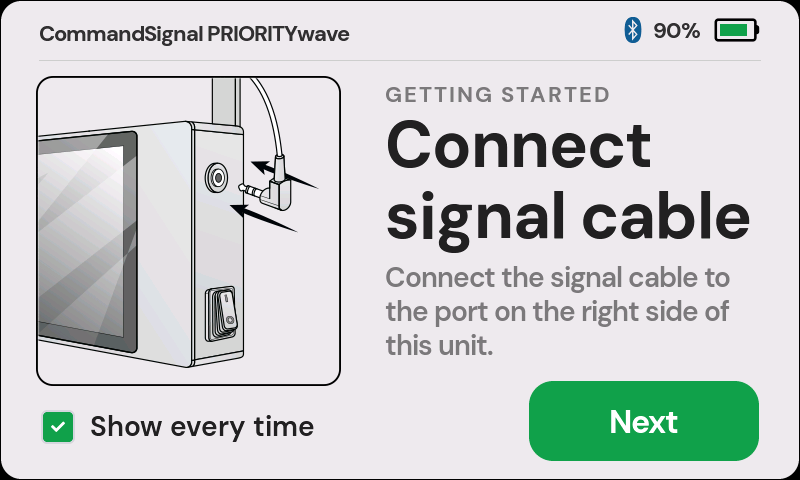
Use the Show every time checkbox on the guide to control whether it appears on every startup:
- Leave it checked to see the guide each time the device powers on.
- Uncheck it to skip the guide on future startups.
You can change this later from Settings > Show Startup Guide. See
Settings.
Status Bar
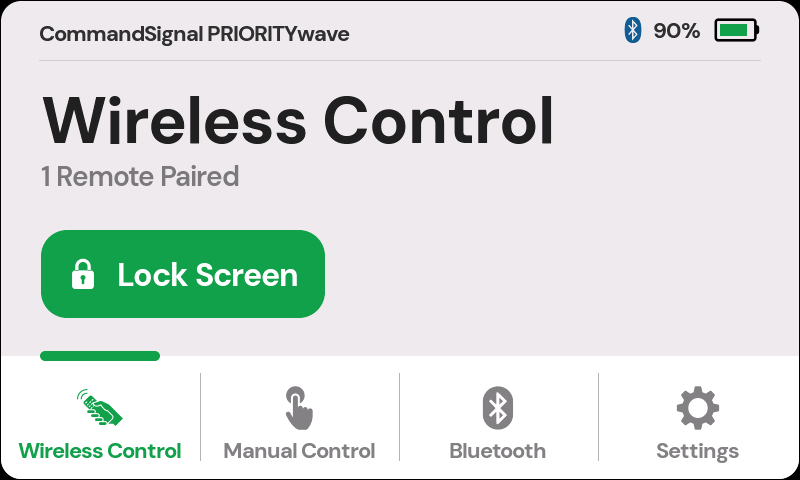
The top status bar appears across the main operating screens. Reading from left to right, it shows:
- Device name —
CommandSignal PRIORITYwave, on the left. - Command activity indicator — appears while an advance command is being sent.
- Bluetooth icon — shows whether Bluetooth is on and a device is connected.
- Battery percentage — the current charge level as a number.
- Battery icon — a gauge that turns green, amber, or red as the charge drops, with a charging bolt overlay while USB-C is connected.
If the screen is asleep, the first touch wakes the backlight. That first touch is used only to wake the display, so tap again to press a control.
Bottom Navigation
The bottom navigation gives quick access to:
- Wireless Control
- Manual Control
- Bluetooth
- Settings
Workflow Screens
Some actions open full-screen flows instead of staying in the bottom navigation:
- Pairing a remote.
- Pairing a Bluetooth device.
- Managing paired remotes.
- Creating or entering a PIN.
- Viewing update progress.
Use the green back arrow in the upper-left corner to leave most workflow screens.
Screen Sleep
The display can turn off after a period of inactivity. The receiver keeps working while the display is asleep. Manual control, pairing, and firmware update screens stay awake while they are active.