Settings
Open Settings from the bottom navigation. Here's every option and what it
does.
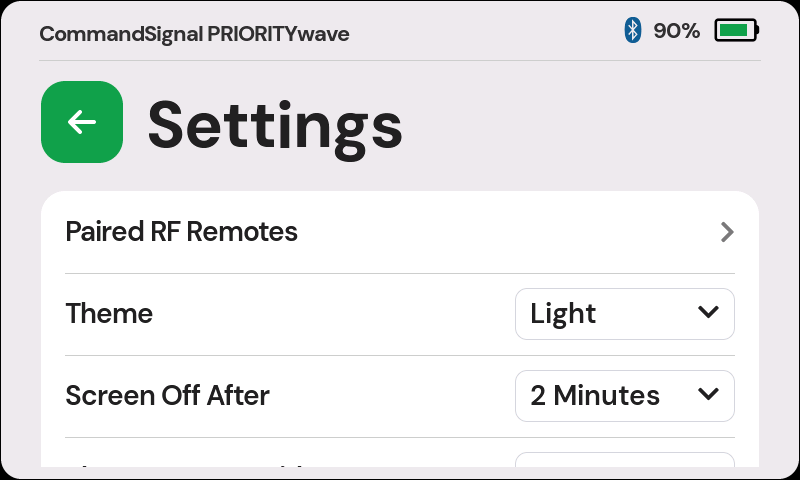
Paired RF Remotes
Opens the list of remotes paired to this receiver, where you can add a new one or remove one you no longer use. Covered in detail on the LoRa Remote page.
Theme
Light or Dark (default: Light). Pick whichever is easier to read — dark is easier on the eyes at night, light cuts glare in full sun.
Screen Off After
How long the display stays on after the last touch: 2 Minutes (default), 1 Minute, or Always On. The receiver keeps working with the display asleep — the first tap wakes the screen, and a second tap presses controls. Note that keeping the screen always on will deplete the internal battery much faster.
Show Startup Guide
Whether the built-in Getting Started guide appears at power-on (default: On). This is the same setting as the Show every time checkbox on the guide itself — change it in either place.
Power LED
Turns the blue status light on or off (default: On). With it off, the receiver runs dark — except for the fast battery-empty warning flash, which always shows. See Status Light.
Clear Bluetooth Devices
Removes all saved phones from the receiver in one step (you'll get a confirmation dialog first). Afterward the receiver advertises under a new Bluetooth name, and each phone should forget the old pairing before reconnecting — details on the Bluetooth Pairing page.
Advanced Settings
Options that change how PRIORITYwave drives the traffic cabinet. There's currently one:
- Advance Pulse Duration — how long the advance contact is held per command: 200 ms, 300 ms, 400 ms (default), 600 ms, or 800 ms.
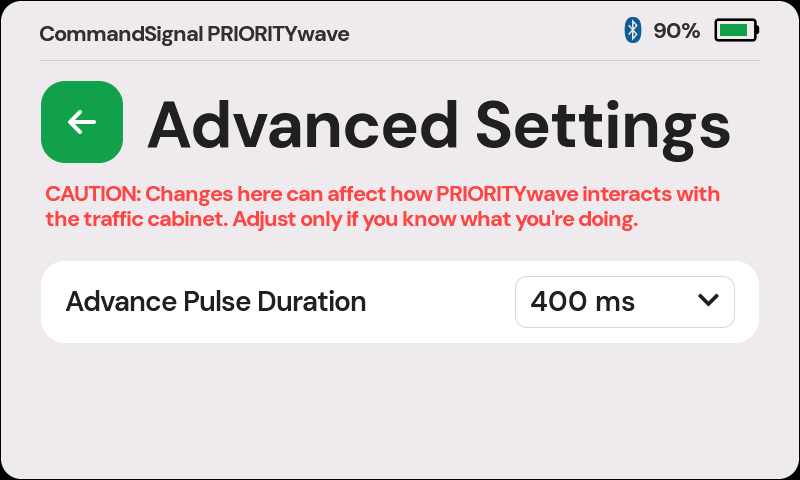
The default works with virtually all cabinets. Change the pulse duration only if you know your cabinet needs a specific value.
About this Device
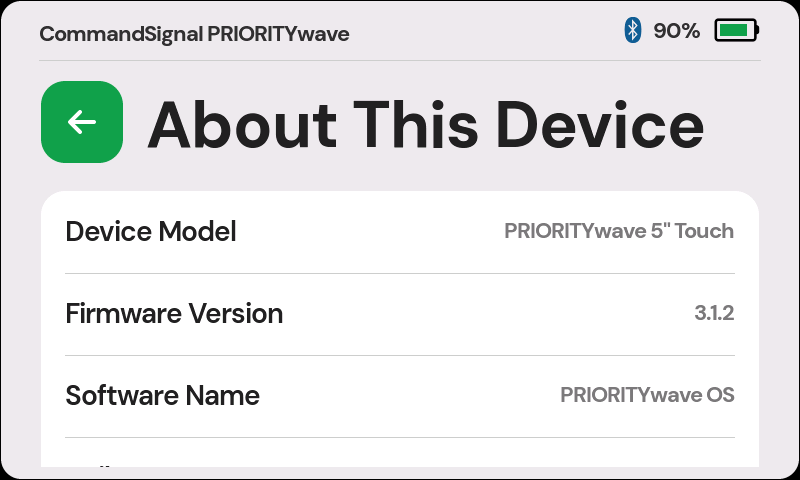
Shows the device model and firmware version — the details support will ask for if you ever call in.