PIN Lock
Working the intersection from a remote while the receiver sits at the cabinet? Lock the touchscreen so a passerby can't tap anything. The lock protects the screen only — your paired remotes and the app keep working normally.
Lock the Touchscreen
- On the Wireless Control screen, tap
Lock Screen. - Enter a 4-digit PIN.
- Enter it once more to confirm.
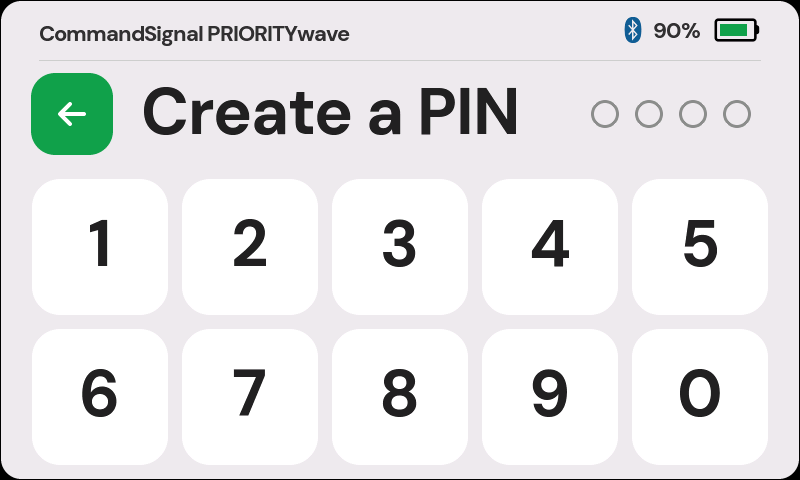
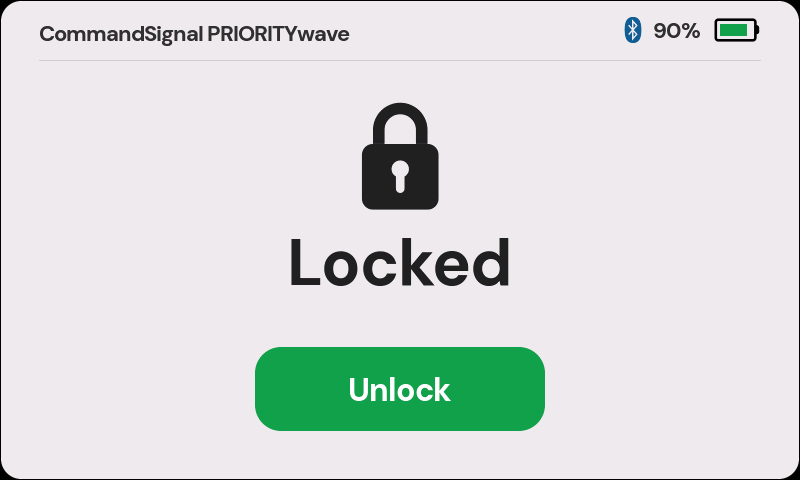
That's it — the locked screen appears and stays up until someone enters the PIN.
Unlock the Touchscreen
Tap Unlock and enter your PIN. You're back on the Wireless Control screen.
If the PIN is wrong, the entry dots shake red and clear so you can try again.
Forgot the PIN?
No problem. Contact us and we'll get you back in without missing a beat.