Update Firmware
Firmware updates are delivered through the CommandSignal app over Bluetooth — there's nothing to download to a computer or copy to a card. Pair your phone, and the app tells you when an update is available. The app side is covered in Update Firmware in the app guide.
Once you start an update from the app, the receiver takes over and shows its progress on screen.
Two Steps, One Update
The receiver has two boards — the touchscreen display and the control board that drives the cabinet — and an update installs on each in turn. The screen labels which step it's on:
- Step 1 of 2: Display — the new display firmware transfers, verifies, and the display restarts.
- Step 2 of 2: Control Board — the control board installs its firmware, restarts, and checks that the new version is running properly.
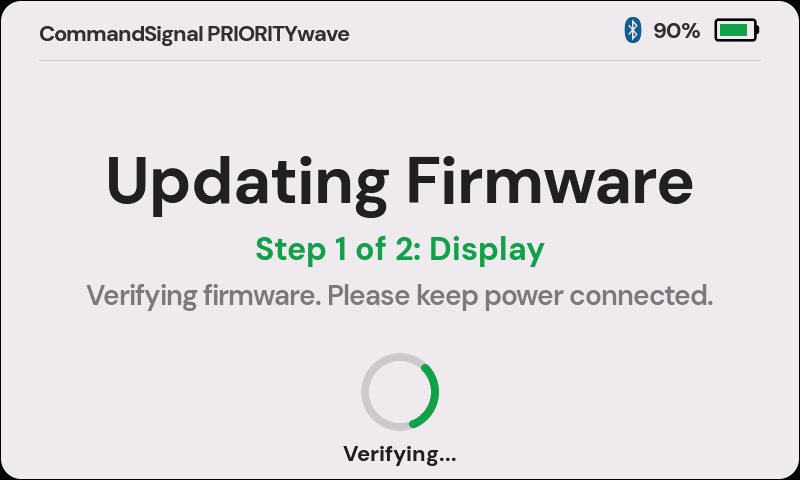
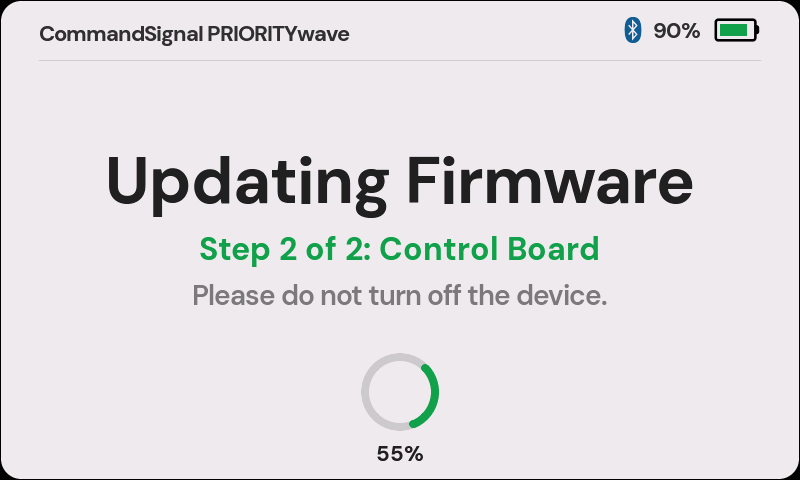
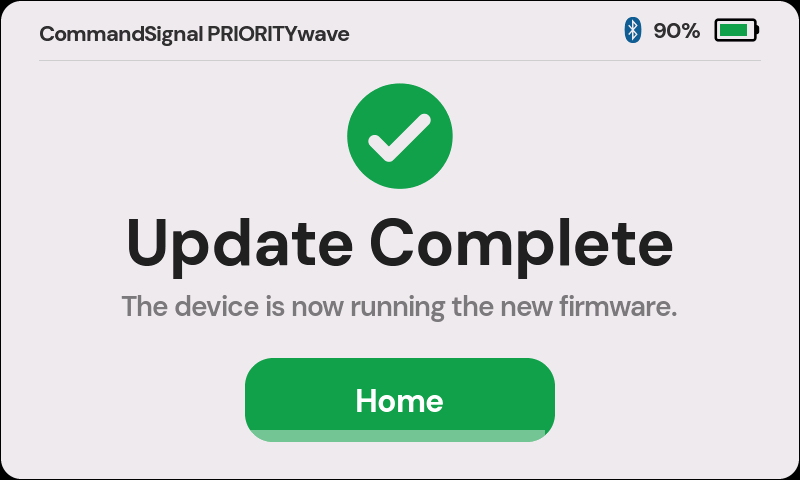
When both steps are done, the receiver shows Update Complete and heads back to the home screen on its own after a few seconds.
While an Update Installs
Just two rules:
- Keep the receiver powered — leave it on, and plug in USB-C if the battery is low.
- Keep the phone nearby with the app open until it finishes.
The whole thing takes a few minutes. Your paired remotes, phones, and Advanced Settings all carry over.
The first update from an older release may reset Theme, Screen Off After,
Show Startup Guide, and Power LED to their defaults. If you'd changed them,
just set them again in Settings.
Pick a Quiet Moment
The receiver won't start an update right after an advance (while its cooldown is running) or while the remote pairing window is open — the app reports that the device is busy. Update between deployments, not while you're actively controlling traffic. You can't advance the signal while an update installs.
If an Update Fails
Updates are verified before they're applied, so a failed or interrupted update won't leave the receiver broken. The screen tells you which way it went:
- "The new firmware did not pass its checks. The previous version was restored." — the receiver tried the new firmware, found a problem, and rolled back on its own.
- "The update was interrupted. The firmware is unchanged." — the transfer didn't finish (for example, the phone walked out of range), so nothing was installed.
Either way, the receiver keeps running its current firmware.
- Keep the device powered and give it a minute to settle.
- Try the update again from the app.
- If it still won't complete, note the on-screen message and contact support.
Service Update Required
Receivers whose control board is on firmware 3.3 or older can't update that board from the app — the app shows Service Update Required in its Settings and on the Firmware screen. Contact support to schedule a one-time service update. After that, both steps install from the app as described above.