Bluetooth Pairing
The Bluetooth screen is where you connect a phone so the CommandSignal app can control the receiver. This page covers the receiver side; the app side is covered in Connect a Device.
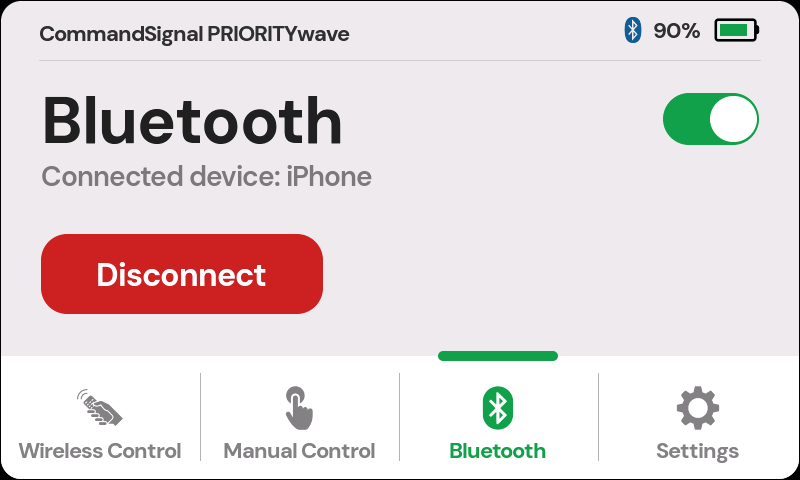
Pair a Phone
- Tap
Bluetoothin the bottom navigation and make sure the toggle in the corner is on. - Tap
Pair a Device. The receiver shows its name — something likePRIORITYwave-XXXX— and stays discoverable for 2 minutes. - In the CommandSignal app, tap the matching device name.
- The receiver pops up a 6-digit passcode. Type that code on your phone when it asks, to finish pairing.
- The receiver shows a success screen, and the app opens its control screen.
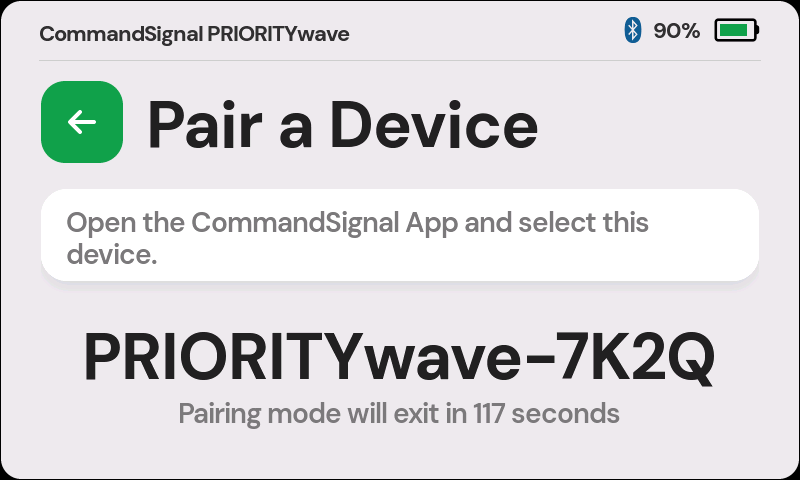
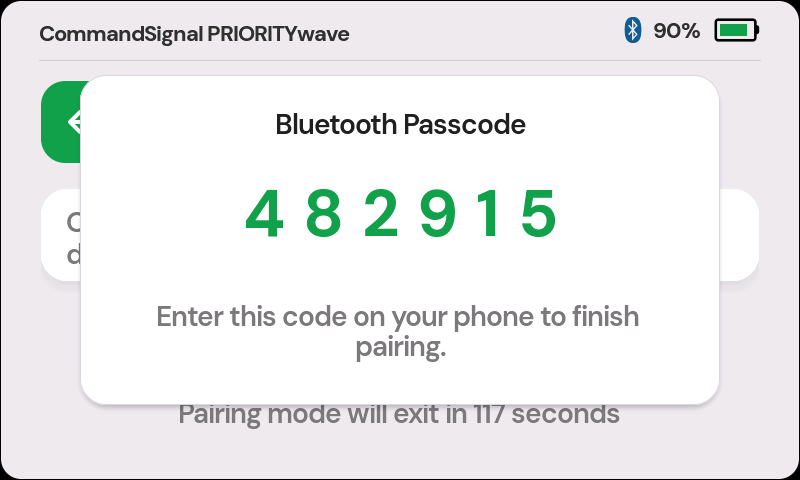
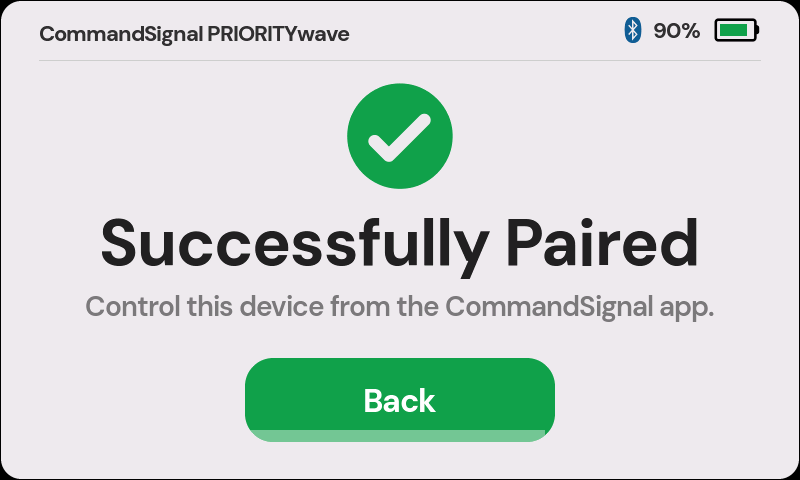
If the 2-minute window runs out before you finish, no harm done — just tap
Pair a Device again.
If a phone that was paired before forgets the receiver and pairs again from the app, you don't need pairing mode — the receiver pops up the passcode on its own.
Turn Bluetooth On or Off
The toggle in the upper-right corner of the Bluetooth screen turns Bluetooth on and off. With it off, no phone can connect — useful if your procedure calls for remote-only operation. Turning Bluetooth off doesn't forget any paired phones.
Disconnect a Phone
While a phone is connected, the Bluetooth screen shows a Disconnect button.
This just ends the current session — the phone stays paired and can reconnect
anytime.
Clear Saved Devices
The receiver remembers up to 12 phones. If pairing gets stuck, or the
receiver says its Bluetooth device list is full, go to Settings >
Clear Bluetooth Devices. This removes every saved phone in one step.
Two things to know after clearing:
- The receiver comes back under a new Bluetooth name, so look for the new
PRIORITYwave-XXXXin the app. - Each phone also needs to forget the old pairing on its side (
Forget This Devicein iPhone Bluetooth settings,Forget/Unpairon Android) before pairing fresh.