Bluetooth Pairing
The Bluetooth screen is where you connect a phone so the CommandSignal app can control the receiver. This page covers the receiver side; the app side is covered in Connect a Device.
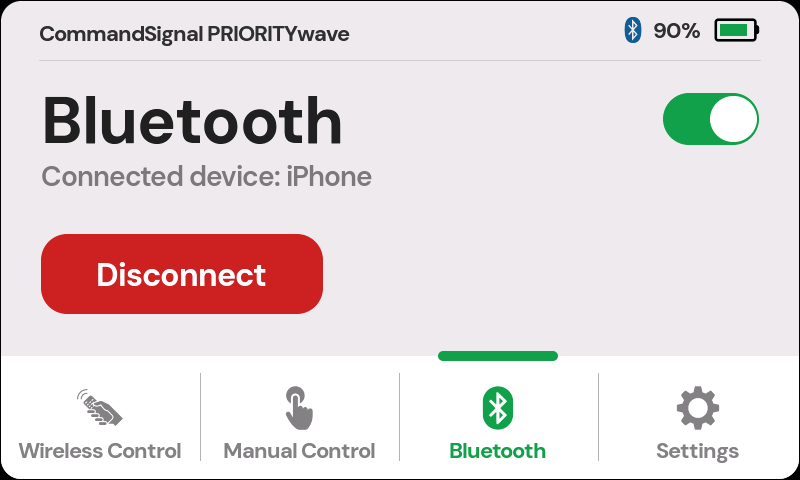
Pair a Phone
- Tap
Bluetoothin the bottom navigation and make sure the toggle in the corner is on. - Tap
Pair a Device. The receiver shows its name — something likePRIORITYwave-XXXX— and stays discoverable for 2 minutes. - In the CommandSignal app, tap the matching device name.
- The receiver pops up a 6-digit passcode. Confirm that same code on your phone to finish pairing.
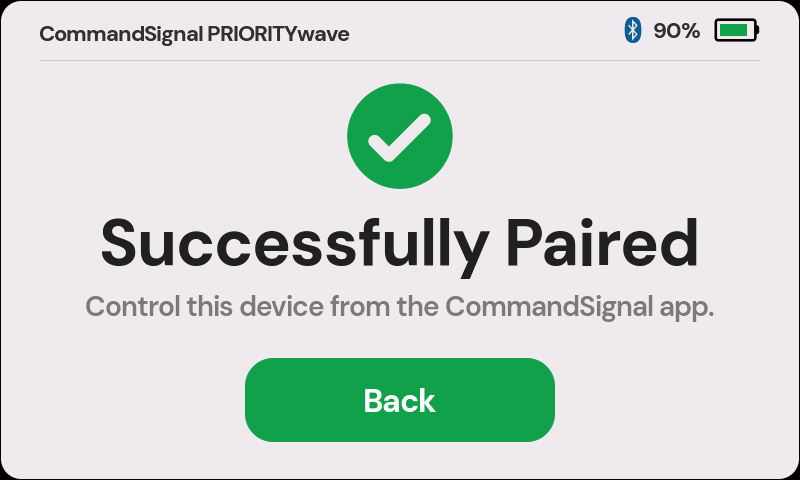
- The receiver shows a success screen, and the app opens its control screen.
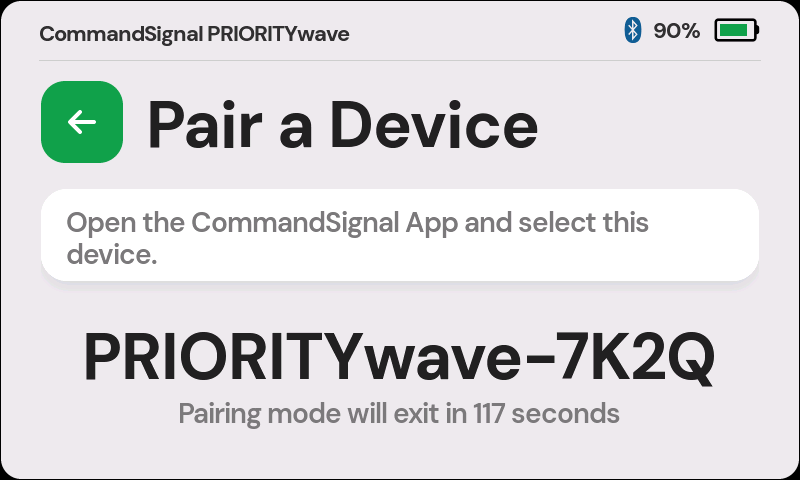
If the 2-minute window runs out before you finish, no harm done — just tap
Pair a Device again.
Turn Bluetooth On or Off
The toggle in the upper-right corner of the Bluetooth screen turns Bluetooth on and off. With it off, no phone can connect — useful if your procedure calls for remote-only operation. Turning Bluetooth off doesn't forget any paired phones.
Disconnect a Phone
While a phone is connected, the Bluetooth screen shows a Disconnect button.
This just ends the current session — the phone stays paired and can reconnect
anytime.
Clear Saved Devices
If pairing gets stuck, or the receiver reports its device list is full, go to
Settings > Clear Bluetooth Devices. This removes every saved phone in one
step.
Two things to know after clearing:
- The receiver comes back under a new Bluetooth name, so look for the new
PRIORITYwave-XXXXin the app. - Each phone also needs to forget the old pairing on its side (
Forget This Devicein iPhone Bluetooth settings,Forget/Unpairon Android) before pairing fresh.