Wear OS Control
The Wear OS app puts the ADVANCE button on your wrist. It relays commands through your Android phone, so keep the phone nearby, connected to the receiver, with the CommandSignal app running.
You'll need: a Wear OS watch paired with an Android phone running the CommandSignal app.
Install the Watch App
The watch app shares the phone app's Play Store listing:
- Install CommandSignal on your Android phone (Getting Started).
- The watch app usually installs to the paired watch automatically. If it doesn't appear, open the Play Store on the watch, search for CommandSignal, and install it there.
The phone app will also nudge you with an install reminder when it sees a connected watch without the app.
Using It
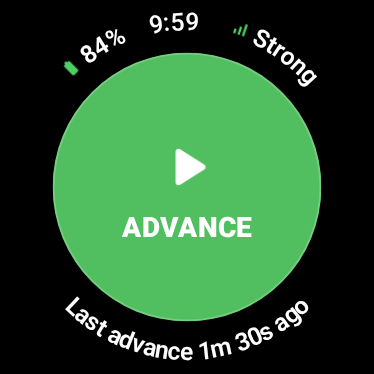
Once the phone is connected to a receiver, the watch shows battery and signal
around a big green ADVANCE button, with the time since the last advance along
the bottom. Tap the button — the watch flashes Advance Confirmed or
Advance Failed with a haptic.
If the watch can't send right now, it tells you why: reconnecting, out of range, disconnected, or open the phone app.
In ambient (always-on) mode the button dims to an outline and reads
Wake to advance. Raise your wrist or tap to wake the watch first — a brush
against the dimmed screen can't fire a command.
If the Button Isn't Available
- Open the CommandSignal app on the phone and check it shows
Connected. - Confirm the watch app is installed and the watch is paired to the phone.
- Keep the phone nearby and reopen the watch app.