Getting Started
Here's how to go from app store to controlling a signal.
1. Download the App
- iPhone (iOS 17 or later) — get it from the App Store
- Android (Android 10 or later) — get it from Google Play
2. First Launch
On first open, the app shows the liability disclaimer. Give it a read — it
covers where the system is and isn't intended to be used — and tap I Agree.
Next, the phone asks for Bluetooth access; the app needs it to find and control PRIORITYwave receivers, so allow it. On Android 10 and 11, the system asks for location access instead — that's an Android requirement for Bluetooth scanning, and the app doesn't use your location for anything else.
3. Put the Receiver in Pairing Mode
On the PRIORITYwave touchscreen, tap Bluetooth, then Pair a Device. The
receiver shows its name and stays discoverable for two minutes.
4. Pair From the App
The app opens on the Select a Device screen and starts scanning automatically. Tap the receiver when it appears.
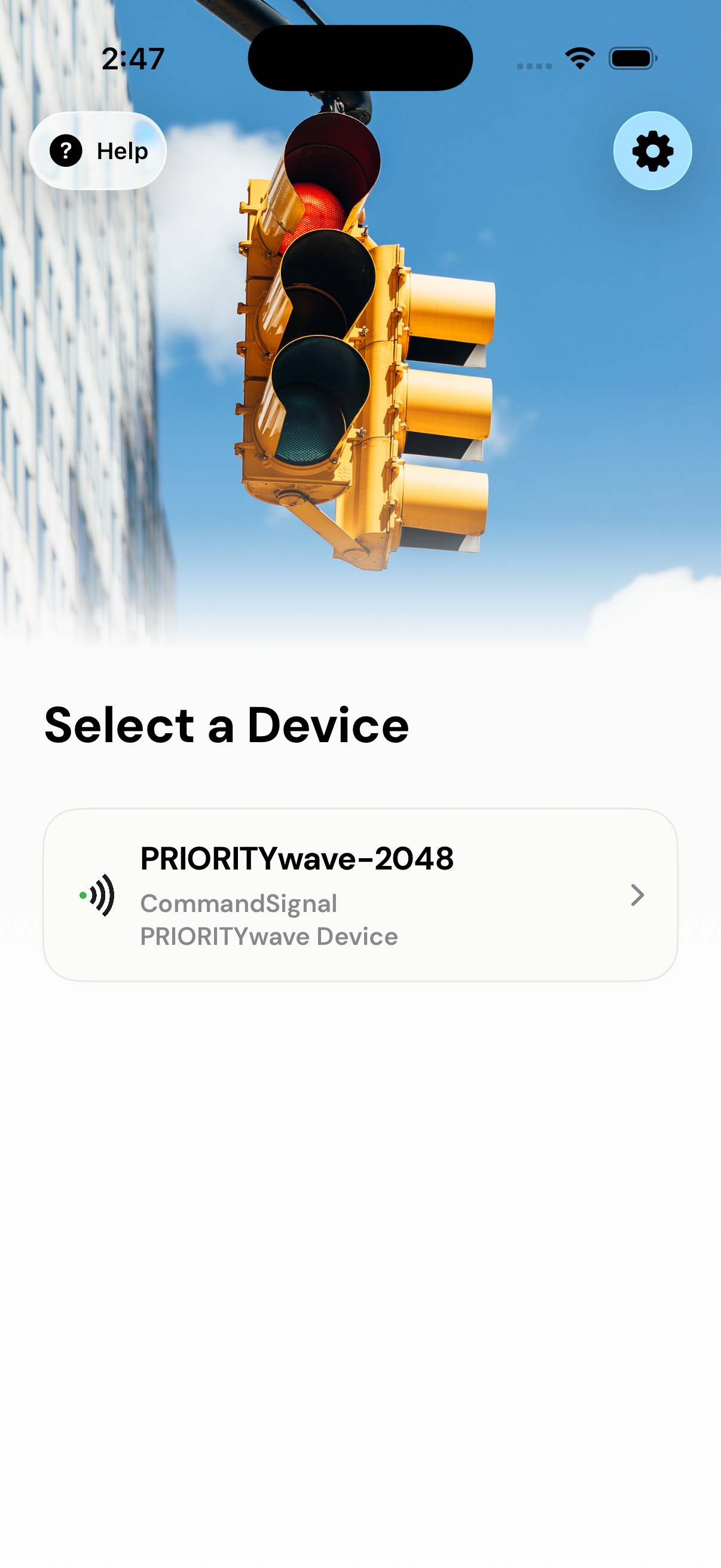
The receiver displays a 6-digit passcode; type it into the system prompt on your phone, and the app opens the Manual Control screen. That's it — the app remembers this receiver and reconnects to it automatically from now on.
A short three-step tour points out the slide control, the status card, and
Settings. You can replay it anytime with the Help button.
5. Before You Operate
A quick glance before sending commands:
- The device name on screen matches the receiver you mean to control.
- The status card shows
Connected, with healthy battery and signal. - The cabinet is set up per your local procedure and you have eyes on traffic.