Update Firmware
The app keeps your receiver's firmware current — no computer, no cables. When an update is available for the connected receiver, you'll see a notification in the app and a link in Settings.
Install an Update
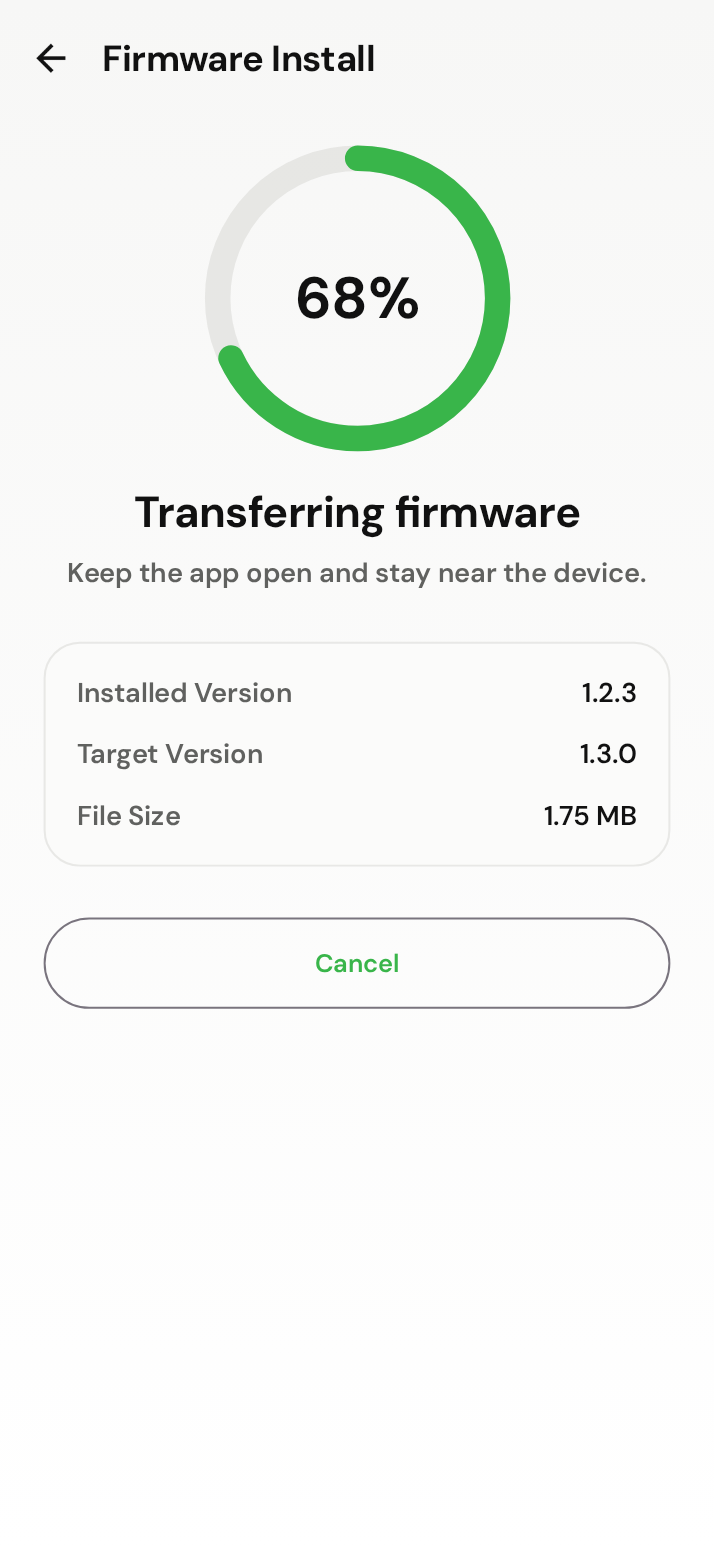
- Connect to the receiver and open the firmware update from Settings (or from the notification bell).
- The Firmware screen shows the installed version, the new version, its size,
and release notes. Tap
Download & Install. - Confirm the prompt, then keep the app open and stay near the receiver.
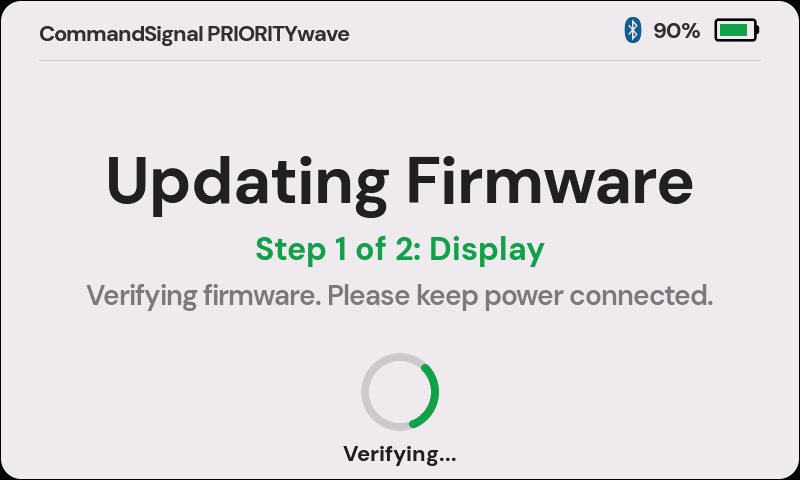
The app walks through downloading, transferring, and installing, with a progress ring the whole way. The receiver installs the update in two steps — Step 1 of 2: Display, then Step 2 of 2: Control Board — and shows matching progress on its own screen, finishing with Update Complete. The app confirms the new version once the receiver is back. All told, it takes a few minutes.
You can't advance signals while an update is installing, so update between deployments — not mid-operation.
If an Update Fails
Updates are verified end-to-end, so a failed or interrupted update doesn't harm the receiver — it keeps running its existing firmware.
- Keep the receiver powered and stay nearby.
- Reopen the Firmware screen; it shows the version currently on the device.
- Try again. If it repeatedly fails, note the error message and contact support.
If the update is rejected because the device is busy, the receiver just sent an advance or its remote pairing window is open. Wait a moment after the last signal change and try again.
The receiver's own screen explains what happened on its side — see If an Update Fails in the PRIORITYwave guide.
Service Update Required
If Settings shows Service Update Required instead of an update, the receiver's control board is on older firmware (3.3 or earlier) that can't be updated over Bluetooth. Open it to see the details, then contact support to schedule a one-time service update. After that, updates install from the app as usual.