Update Firmware
The app keeps your receiver's firmware current — no computer, no cables. When an update is available for the connected receiver, you'll see a notification in the app and a link in Settings.
Install an Update
- Connect to the receiver and open the firmware update from Settings (or from the notification bell).
- The Firmware screen shows the installed version, the new version, its size,
and release notes. Tap
Download & Install. - Confirm the prompt, then keep the app open and stay near the receiver.
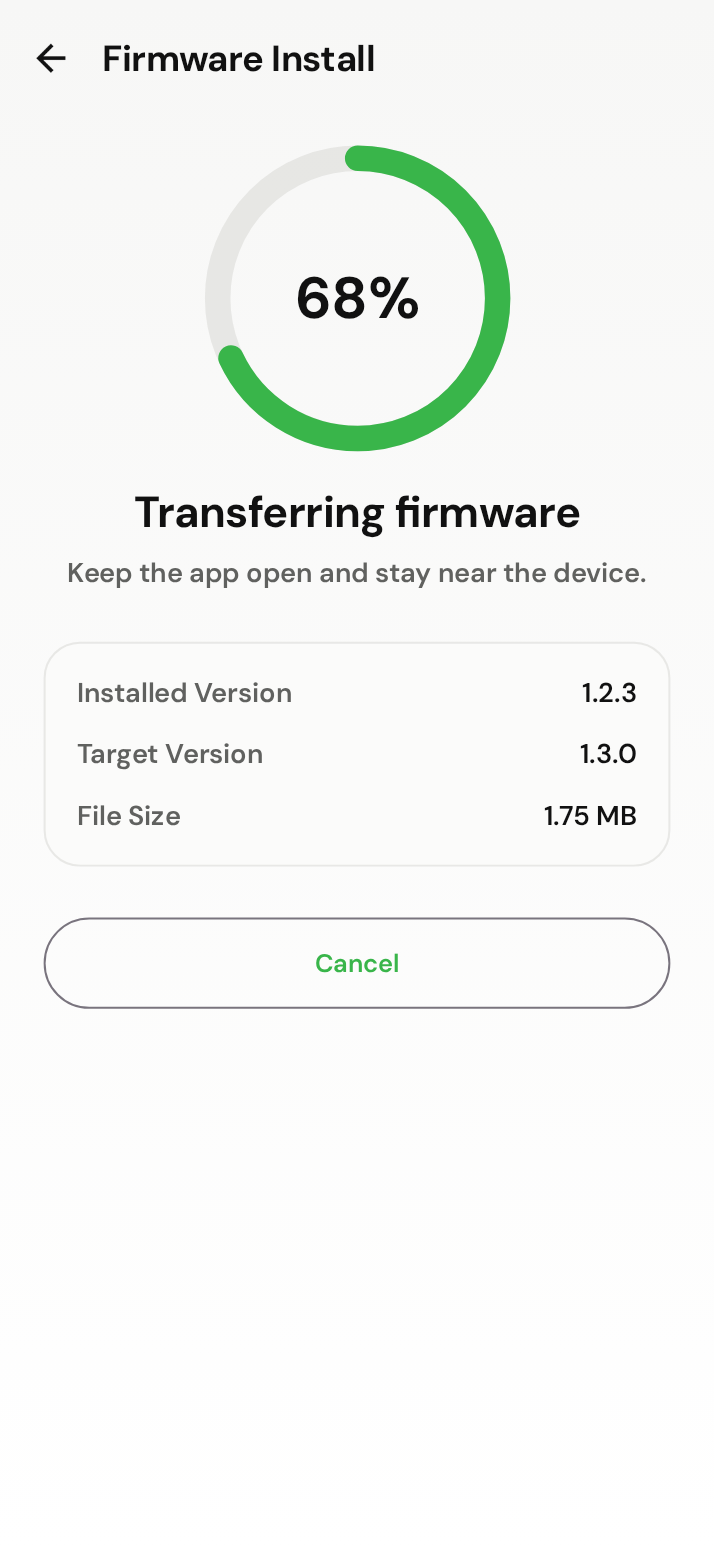
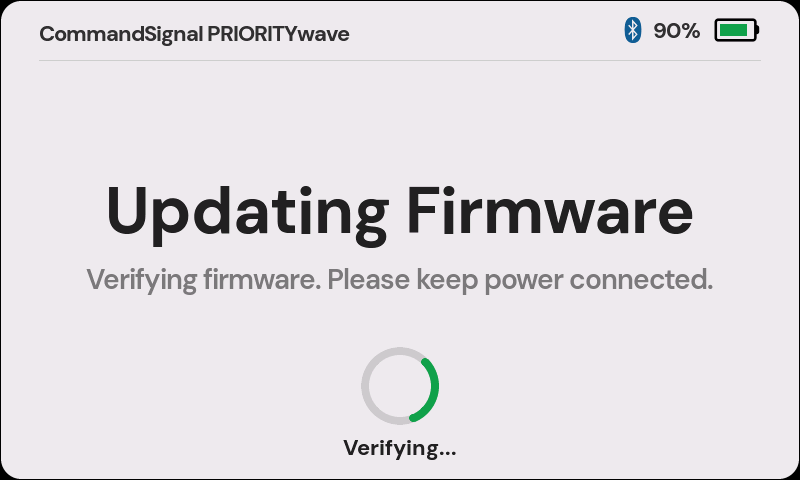
The app walks through downloading, transferring, and installing, with a progress ring the whole way. The receiver shows matching progress on its own screen and restarts at the end — the app confirms the new version once it's back. All told, it takes a few minutes.
warning
You can't advance signals while an update is installing, so update between deployments — not mid-operation.
If an Update Fails
Updates are verified end-to-end, so a failed or interrupted update doesn't harm the receiver — it keeps running its existing firmware.
- Keep the receiver powered and stay nearby.
- Reopen the Firmware screen; it shows the version currently on the device.
- Try again. If it repeatedly fails, note the error message and contact support.