Connect a Device
The app opens on the Select a Device screen and scans for nearby receivers
on its own — no refresh button to hunt for. Each receiver it finds shows up by
name, and a receiver you've connected to before is labeled
Previously connected.
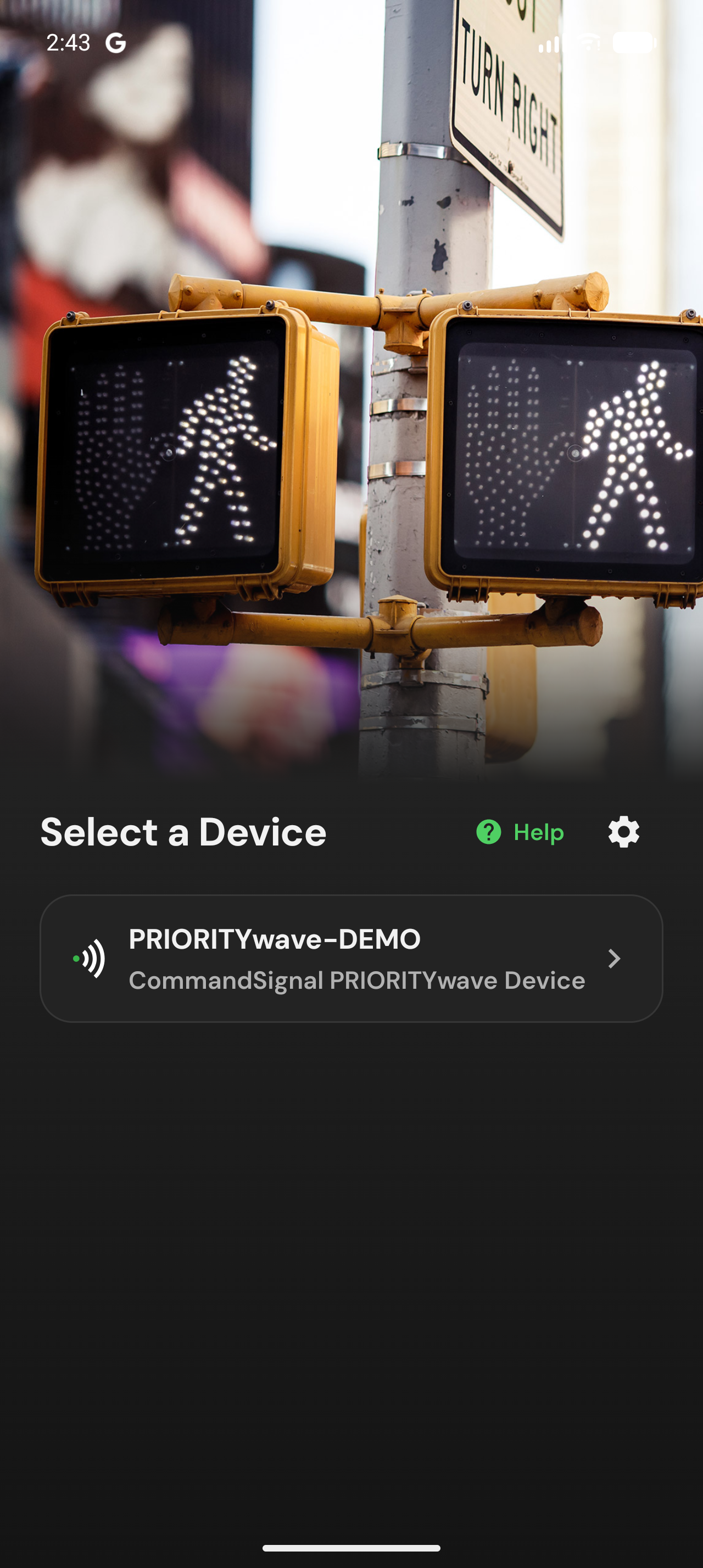
If Bluetooth is off or the app doesn't have permission, the screen says so and gives you a button straight to the right setting.
Pair a Receiver
- On the receiver:
Bluetooth>Pair a Device. It stays discoverable for two minutes. - In the app, tap the matching device name.
- Confirm the 6-digit passcode shown on the receiver when your phone asks.
- The app opens the Manual Control screen. Done.
If pairing fails, the app returns to the device list and tells you what went wrong — usually the fix is to restart pairing mode on the receiver and try again. For anything more stubborn, see Fix a Pairing That Stopped Working.
Staying Connected
Once paired, the app remembers your receiver and reconnects automatically whenever it's in range. The status pill on the Control screen tells you where things stand:
- Connected — ready for commands.
- Reconnecting — the app is restoring the link; usually you just walked a bit far. Head back toward the receiver.
- Out of Range / Disconnected — the receiver can't be reached right now. Move closer; the app keeps trying while it's open.
Fix a Pairing That Stopped Working
Bluetooth pairings can occasionally get out of sync — for example after the receiver's saved devices are cleared. The app detects this and walks you through the fix, which boils down to forgetting the old pairing on both sides:
- On the receiver:
Settings>Clear Bluetooth Devices. - On the phone:
- iPhone —
Settings>Bluetooth, tap the info button next to the PRIORITYwave device, chooseForget This Device. - Android —
Settings>Connected devices, tap the PRIORITYwave device, chooseForget/Unpair.
- iPhone —
- Pair fresh from the app. Note the receiver advertises under a new name after its devices are cleared, so pick the new one.
A receiver only talks to one phone at a time. If it won't connect, check whether it's already connected to a teammate's phone — they can disconnect from the app's Settings.
Disconnect
Open Settings from the Control screen and tap Disconnect from Device. The app
returns to Select a Device, and the receiver is free for another phone.