Apple Watch Control
Keep your phone in your pocket and advance the signal from your wrist. The watch app relays commands through your iPhone, so the only requirement is that the iPhone stays nearby, connected to the receiver, with the CommandSignal app running.
You'll need: an Apple Watch on watchOS 10 or later, paired with an iPhone running the CommandSignal app (iOS 17 or later).
Install the Watch App
The watch app comes with the iPhone app — there's no separate listing to find:
- Install CommandSignal on your iPhone (Getting Started).
- If Automatic App Install is on in the iPhone's Watch app, you're already done.
- Otherwise, open the Watch app, scroll to Available Apps, and tap Install next to CommandSignal.
Using It
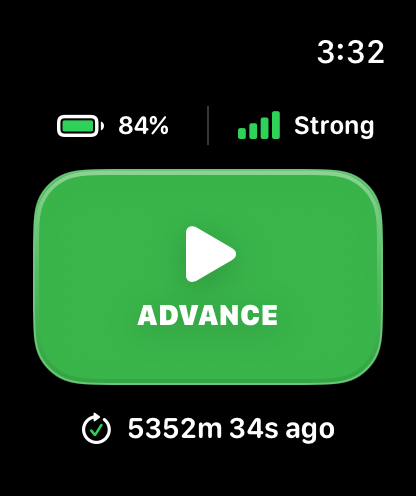
The watch shows the receiver's battery and signal strength, a big green
ADVANCE button, and the time since the last advance. Tap the button (or use
Double Tap on supported watches) — the watch flashes Advance Confirmed or
Advance Failed with a haptic, same as the phone.
If the watch can't send commands right now, it says why: pair a device in the CommandSignal app, reconnecting, out of range, or open the iPhone app.
When the watch dims to its always-on state, the Advance button is disabled and
reads Wake to advance — raise your wrist or tap to wake it first. That's
intentional, so a brush against the dimmed screen can't fire a command.
If the Button Isn't Available
- Open the CommandSignal app on the iPhone and check it shows
Connected. - Keep the iPhone nearby.
- Reopen the watch app.