Settings and Notifications
Tap the gear icon on the Control screen to open Settings. Here's what's inside.
Notifications
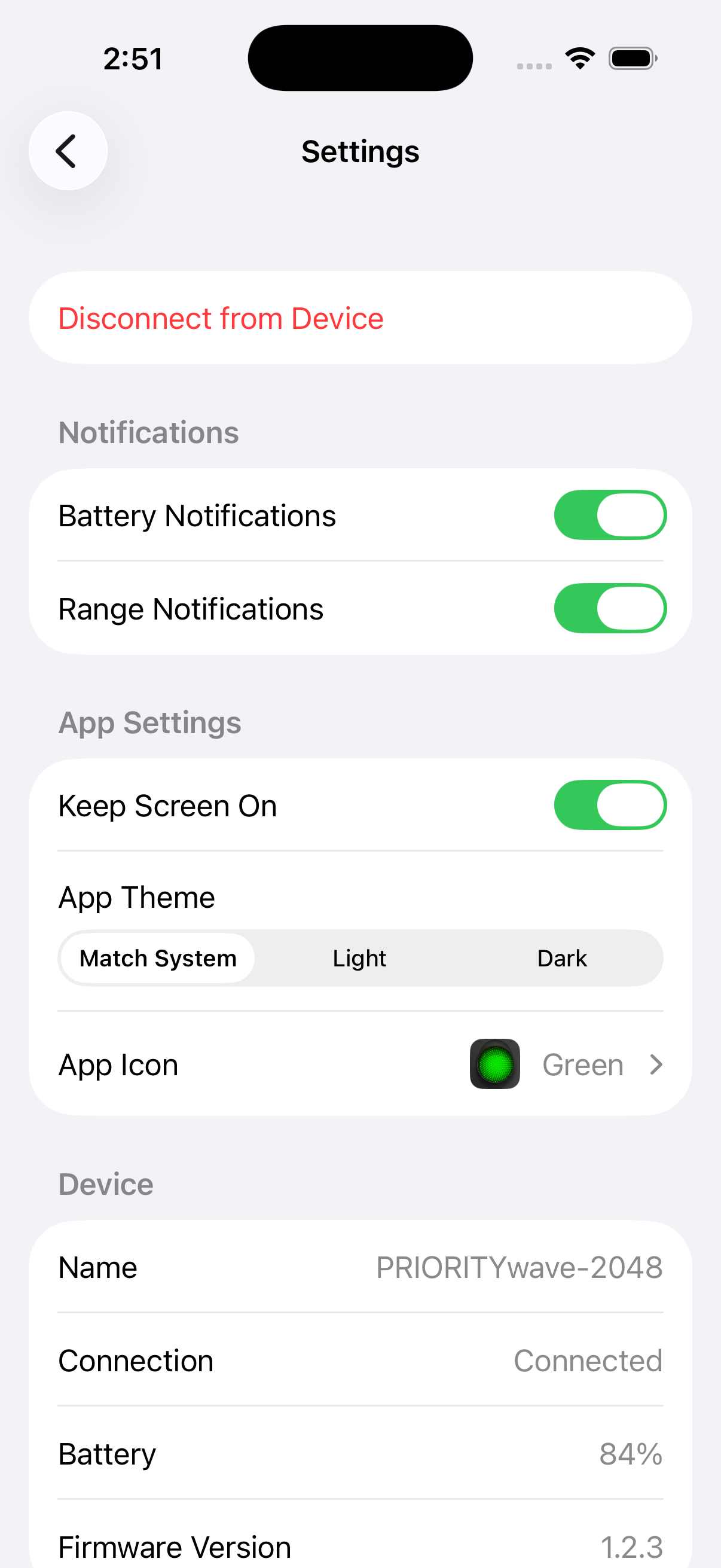
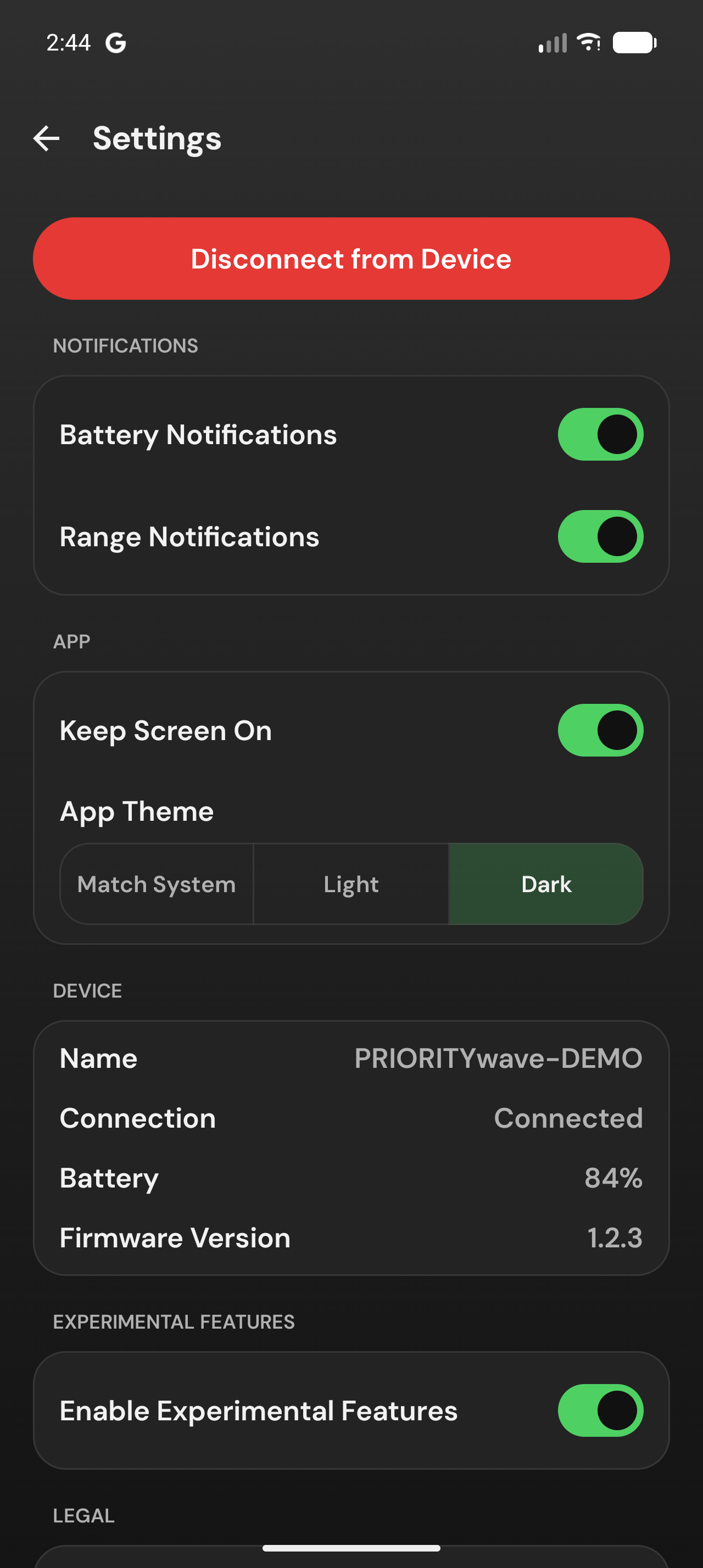
The app can alert you when the receiver needs attention, even if you're looking elsewhere:
- Battery Notifications (on by default) — the receiver's battery is running low or critically low.
- Range Notifications (on by default) — weak signal, out of range, or disconnected.
The phone asks for notification permission shortly after your first successful
connection. If you declined it, both toggles gray out — tap Open Settings to
turn notifications back on at the system level.
The bell icon on the Control screen collects in-app notifications too, including a tappable alert when a firmware update is available for your receiver.
App Settings
- Keep Screen On (on by default) — the phone won't auto-lock while the Control screen is up. It's also always on during Auto Advance, regardless of this setting.
- App Theme — Match System, Light, or Dark.
- App Icon (iPhone) — pick an alternate home-screen icon.
Device
With a receiver connected, this section shows its name, connection state,
battery, and firmware version — plus a Firmware Update Available link when
there's one to install, or Service Update Required if the receiver needs a
one-time service update first (see
Update Firmware).
Experimental Features
Enable Experimental Features reveals the
Auto Advance tab on the Control screen. It's
off by default.
Legal
The Liability & Disclaimer you accepted at first launch lives here for re-reading, along with the Privacy Policy and Terms of Use.
Disconnect
Disconnect from Device ends the current session and returns to the Select a
Device screen — useful when handing the receiver off to a teammate's phone,
since a receiver connects to one phone at a time.